
HubSpot Slack Integration lets you connect your HubSpot CRM and tools with Slack, so you can work across both platforms without constantly switching windows.
Simply put, you install an app (or enable the feature) so that Slack can send you notifications about HubSpot events, let you create or update records in HubSpot directly from Slack, share reports, live chat messages, and tickets, among other features. It makes the two tools talk to each other.
The key benefits of the HubSpot Slack integration are the following:
-
You are kept up to date in real time and details such as form submissions, new leads, task assignments, and changes to deals are visible in Slack.
-
You can open HubSpot inside Slack rather than going to it to check something out.
-
Improved cooperation - all people receive updates, have an opportunity to reply and identify problems in their initial stages.
-
Reduced tool changes, reduced missed messages or missed opportunities.
-
With that baseline in place, let’s dig into the complete and only guide you will need to understand HubSpot Slack integration.
Benefits of Integrating HubSpot with Slack
Integrating HubSpot and Slack delivers multiple advantages beyond just convenience. Here are the most important ones:
Immediate notifications
When something important happens in HubSpot, such as a new lead, ticket update, or form submission, you are alerted instantly in Slack. That helps your team react fast.
Record access and action inside Slack
You can search for, create, or update records (contacts, companies, deals, tasks) without opening HubSpot. That makes small actions much faster.
Streamlined workflows and automation
HubSpot workflows can send notifications or messages to Slack channels or users when certain criteria are met. For example, you can have a Slack message when a deal closes, or when a support ticket needs attention.
Collaboration around deals and tickets
You can associate Slack channels with HubSpot deals or companies, so everyone in the channel gets relevant updates. Support teams can sync tickets, see internal comments, and update ticket properties from Slack.
Reduced tool switching & increased visibility
You will have to spend less time flipping between tab after tab. Everyone (sales, support, marketing) gets the context they need within Slack. That also helps reduce missed events or overlooked tasks.
How to Connect HubSpot with Slack
Now that you have understood what benefits you can get through HubSpot Slack integration, we will now walk you through a step by step guide on how to connect the two tools together.
Prerequisites
Before you begin:
-
You must have administrator permissions in Slack (to install apps) and appropriate permissions in HubSpot (super admin or marketplace/app permissions).
-
Your Slack user email and HubSpot user email should match. If they don’t, mapping will be required.
-
Decide which Slack workspace you’ll be connecting to, and which channels you want to use.
Note: only one Slack workspace can be connected to HubSpot with this integration.
Installation and First‑Time Setup
Getting HubSpot and Slack connected is a fairly simple process, but it's important to follow each step carefully to make sure everything runs smoothly. Here’s how to do it:
1. Head to the HubSpot App Marketplace
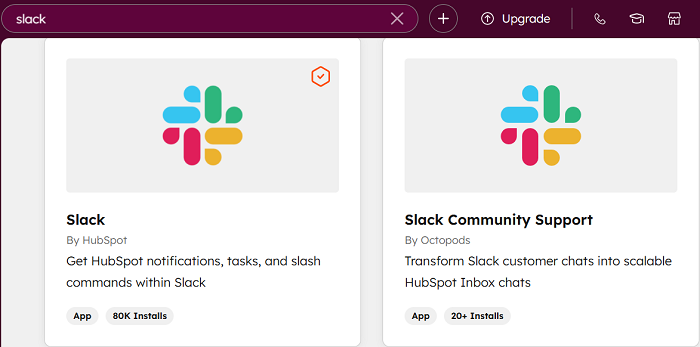
Log in to your HubSpot account and click on the Marketplace icon in the main navigation bar (it looks like a little store). From there, type “Slack” into the search bar and select the Slack integration from the list of available apps.
2. Install the Slack App
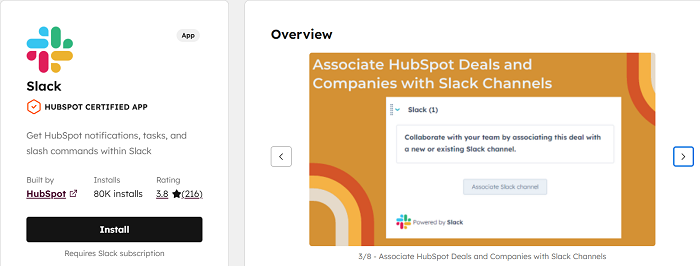
Once you have selected the Slack app, click the Install app button. You will be redirected to Slack, where you may be asked to approve the integration. Slack will display a list of permissions the app is requesting, including the ability to read channel information, send messages, and interact with users.
3. Review and Authorize Permissions
Make sure you review what the app is requesting access to. This is especially important if you are an admin managing multiple channels or sensitive company data. If everything looks good, click Allow to continue.
4. Confirmation and Setup Complete
After authorizing the app in Slack, you will be automatically redirected back to HubSpot. You should see a confirmation message in your HubSpot dashboard, and you might also receive a confirmation email. Once that is done, the Slack integration is officially live in your HubSpot account.
Configuring Notifications and Permissions
-
In HubSpot settings → Connected Apps or Integrations, find Slack. From there, you can configure what notifications you want to receive in Slack. For example:
-
New form submissions
-
Contact or lead assignments
-
Mentions in comments or notes
-
Updates on deals or tickets
-
Live chat messages from your website
-
-
If you want notifications to show up in private Slack channels, there is one extra step, you need to manually invite the HubSpot app into those channels. Just type /invite @HubSpot directly into the Slack channel, and you are good to go. Without this, notifications will not appear, even if everything else is set up correctly.
-
Map your users: if your HubSpot user email does not match Slack’s, HubSpot will prompt you to map them. This ensures that notifications are sent to the right people.
Associating Slack Channels with HubSpot Records
-
You can associate channels with deals or companies. That way, updates on those records (calls, notes, meetings, emails) are pushed into the associated Slack channel.
-
You can also create new Slack channels from HubSpot workflows when a record hits certain criteria. That makes collaboration automatic for specific deals or tickets.
Popular Use Cases and Workflow Examples
These are practical examples of how teams use the HubSpot‑Slack integration to solve real tasks or streamline flows.
Sales alert for new leads
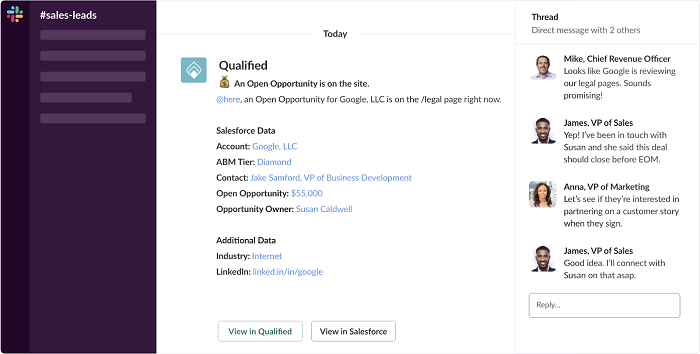
Whenever a form is submitted or a lead is created in HubSpot, a specific Slack channel (e.g. #sales‑leads) can get a message notifying the team so someone can follow up swiftly.
Deal stage change notifications
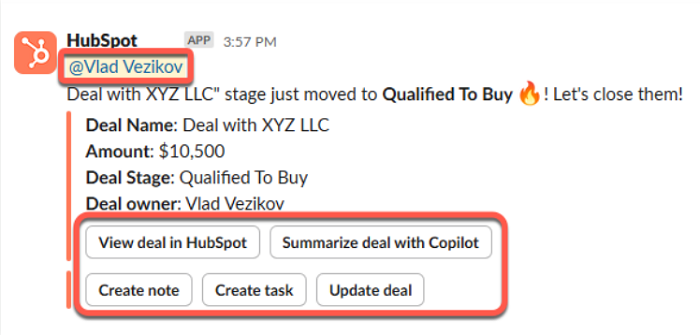
A deal moves from “Proposal Sent” to “Negotiation” or “Closed Won” → Slack notification triggers in a channel so leadership or other stakeholders are kept in the loop.
Live chat routing
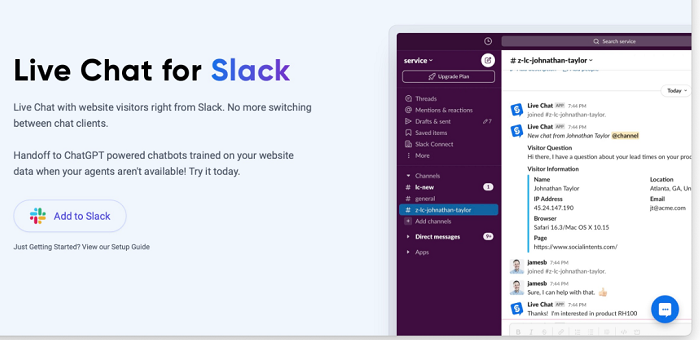
If your website has live chat via HubSpot, messages from visitors show up in Slack; team members can reply, see context, decide whether to respond from Slack or open it in HubSpot.
Ticket management in support
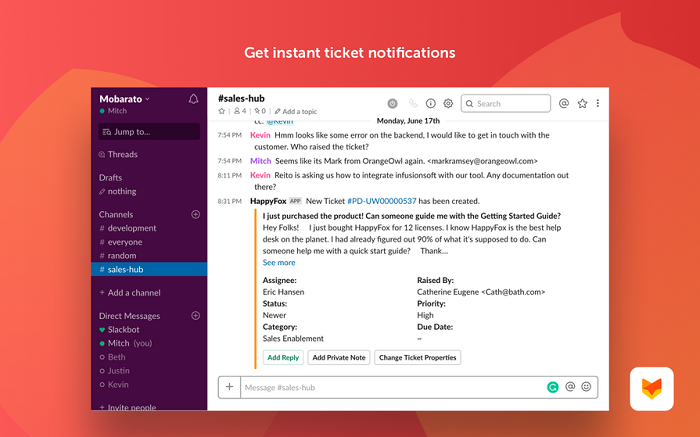
When a support ticket changes status (e.g. escalated, waiting on customer), the update appears in Slack. Internal comments or updates can be synced, and sometimes certain ticket properties can be changed right from Slack.
Workflow based notifications
For instance, automated messages: when a deal closes, send a celebratory message in Slack. Or, when a task is overdue, alert someone directly. Workflows can be set up for many triggers.
.png?width=700&height=328&name=Workflow%20based%20notifications%20(clearfeed.ai).png)
Sharing reports, dashboards, and marketing insights
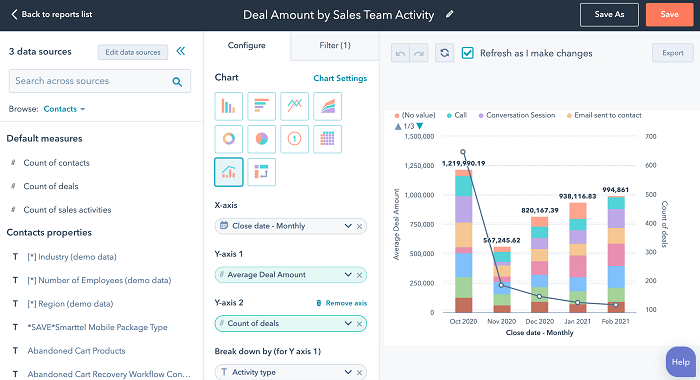
Instead of manually exporting, teams can use “Share to Slack” inside HubSpot to send reports or dashboards to channels for visibility.
Best Ways to Use the HubSpot Slack Integration
In order to get the most value from this integration, doing it well matters. Here are recommended practices to avoid common pitfalls and maximize benefit.
Organize channels and permissions carefully
Create dedicated Slack channels for different teams or functions (sales‑leads, support‑tickets, marketing‑insights). That keeps notifications relevant and reduces noise.
You have to make sure that private channels include the HubSpot app if needed. Without that, messaging or notifications may not show up.
Filter what you get notified about
Do not enable every notification, too many alerts can lead to alert fatigue. Pick the most important ones: new leads, urgent tickets, and deal stage changes.
Use HubSpot's notification settings to select which events trigger Slack messages.
Use workflows for automation
Build HubSpot workflows that integrate with Slack, such as sending messages when specific thresholds are met or when record properties change. This makes the system proactive.
If your subscription supports it (Professional/Enterprise), use advanced workflow actions with Slack (action buttons inside Slack messages, etc.). If the native app and workflow actions don't cover your process, a custom HubSpot integration from a partner can push exactly the data your team needs into Slack.
Keep things clean and auditable
Regularly audit which Slack channels are associated with which records. Remove stale associations to avoid confusion. Monitor who has permissions to install or remove the app, or map users. Good governance keeps things reliable.
Train your team
Familiarize everybody with the usage of the integration: how to read Slack notifications, how to use the shortcuts/slash commands, and how to reply in Slack versus via HubSpot accordingly. Record common onboarding processes and best practices in your company.
Common Issues and Troubleshooting Tips
Even with a solid setup, some issues crop up. Here are some common problems and their solutions.
| Problem | Cause | Solution / Tips |
| Notifications not showing up in Slack | HubSpot app not added to private channel, or Slack‑HubSpot email mismatch. | Invite the HubSpot app to the channel; map emails correctly. |
| User doesn’t see the correct permissions or channels | User’s Slack permissions are limited; the HubSpot user role is insufficient. | Ensure the user is properly mapped, has the needed rights in both Slack & HubSpot. |
| Too many irrelevant notifications | Overbroad settings, too many triggers enabled. | Reduce triggers; refine workflows; limit to key channels; use filters. |
| Workflow Slack message missing actions | Some workflows/features are only available in certain HubSpot plans (e.g., Professional, Enterprise) | Verify your plan, enable required features, and check if workflow supports Slack actions. |
| Ticket sync or help desk updates are not propagating | Sync criteria misconfigured; HubSpot app not authorized properly in Slack; user mapping issues | Double-check sync filters; confirm app permissions; mapping of users; ensure channel visibility. |
In addition to the above-provided list, test the integration early on. Use a test Slack channel, trigger some events manually, and see how messages appear. That gives you confidence and prevents surprises once live.
Conclusion
The HubSpot Slack integration is a true game changer at the end of the day to make your team aligned, to increase the reaction time, and to reduce the amount of back-and-forth between the sales, marketing, and support.
With the ability to sync notifications, manage records, and automate important workflows, you are effectively taking the best of HubSpot directly into your Slack workspace. You will, of course, wish to have it configured optically, setting up permissions, choosing the appropriate notifications, arranging your channels, and ensuring that your team understands how to operate it.
3 & Four Technologies help businesses do exactly that, from setting up smart, seamless integrations that actually make your day-to-day easier. Done right, this is not just about saving time. Instead, it is about building a more connected, efficient team.