
Let’s face it, when you are juggling sales, marketing, and support, it can get messy. That is where tools like HubSpot and Zendesk shine.
HubSpot is your go-to platform for managing customer relationships (CRM), marketing campaigns, and sales pipelines.
Zendesk, on the other hand, is your support team’s best friend, as it helps handle customer tickets, chats, and service requests efficiently.
Now, imagine combining these two. Powerful, right?
This guide is all about integrating HubSpot with Zendesk to create a seamless flow between your sales, marketing, and support teams.
Who is this guide for?
-
Marketers who want full customer visibility
-
Customer Support Teams who need context to solve issues faster
-
Tech Admins setting up or managing integrations
Whether you are just curious or ready to connect the two, this guide has got you.
Why Integrate HubSpot with Zendesk?
Still on the fence about the HubSpot Zendesk integration? Here is why it is a smart move for you and your business:
A Unified View of Customers
You do not have to switch between tabs anymore. When HubSpot and Zendesk talk to each other, you get a complete view of your customers, from their first marketing touch to their latest support ticket.
Better Team Collaboration
Sales knows when a customer has an open ticket. Support can see what marketing emails a customer received. Everyone’s in sync.
Faster, Better Customer Experience
When your support team sees the full customer history, they can solve problems faster and smarter.
Automatic Data Sync
Contacts, tickets, and conversations are updated in real-time across both platforms. Goodbye manual updates!
Key Features of the HubSpot-Zendesk Integration
Once you connect HubSpot and Zendesk, you can perform many new tasks, including but not limited to:
-
Contact and Ticket Syncing: Automatically link Zendesk tickets with HubSpot contacts. This means that there is no need to double-enter data.
-
Bidirectional Data Flow: Changes in Zendesk reflect in HubSpot, and vice versa. This keeps everything aligned.
-
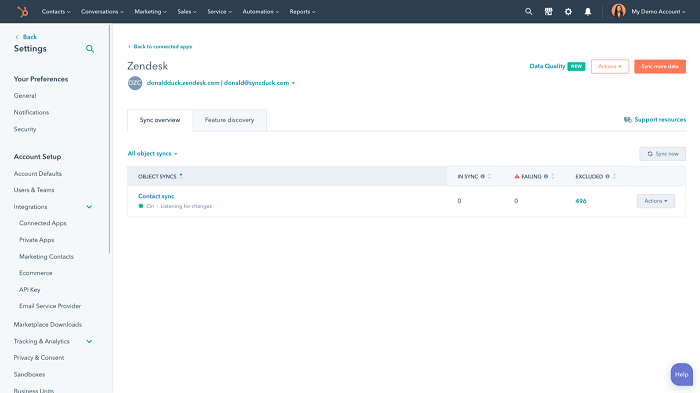
Activity Tracking: See Zendesk ticket activity right in your HubSpot timeline. This is very helpful for sales and marketing teams.
-
Custom Property Mapping: Map specific fields like ticket status, priority, or custom tags to your HubSpot properties.
-
Reporting and Analytics Sync: Pull support data into HubSpot dashboards for a full business overview.
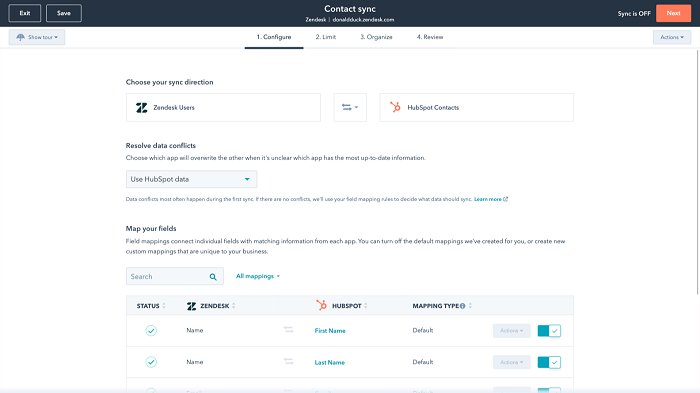 Contact and Ticket Syncing
 Bidirectional Data Flow
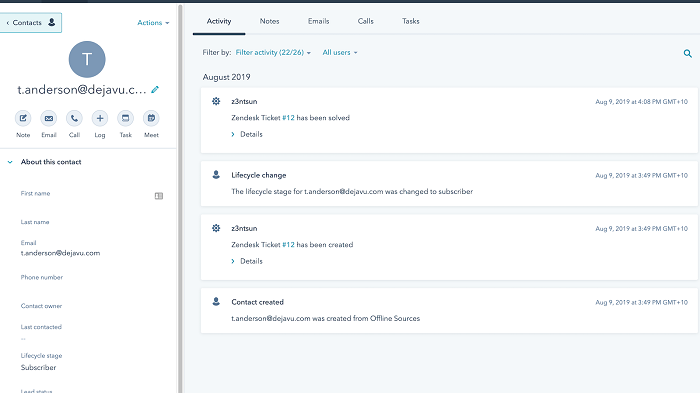 Activity Tracking
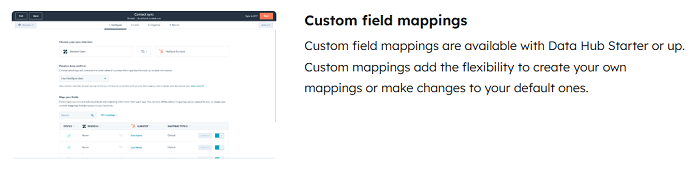
Custom Property Mapping
Reporting and Analytics Sync
Prerequisites for Integration
Before proceeding, let’s ensure you have everything set up.
-
You need active HubSpot and Zendesk accounts.
-
You will need admin access on both platforms to connect and configure the integration.
-
Some features (like custom field mapping) work best on paid tiers. HubSpot Pro or Enterprise, and Zendesk Suite plans are ideal.
-
Depending on how you integrate, you may need:
-
API keys (for custom integrations)
-
OAuth login credentials (for native or third-party tools)
-
Methods to Integrate HubSpot and Zendesk
There is more than one way for HubSpot Zendesk integration.
Method 1: Native Integration via HubSpot Marketplace
This is the simplest way to get started.
-
Go to the HubSpot App Marketplace
-
Search for Zendesk
-
Click the Connect App and follow the prompts
-
Choose which data to sync, for example, contacts, tickets, and companies
-
Map your fields and set automation rules
| Pros | Cons |
| No coding required | Limited customization |
| Easy setup and maintenance | May not fit complex workflows |
| Supported by both platforms |
Method 2: Using Third-Party Tools (Zapier, PieSync, Workato)
This one is perfect if you want more flexibility.
When to Use:
-
If you need custom workflows
-
When you want to connect other apps too
-
If you are looking for more triggers and actions
Examples:
-
Create a HubSpot contact when a new Zendesk ticket is submitted
-
Update a Zendesk ticket when a HubSpot deal closes
| Pros | Cons |
| Lots of pre-built templates | Easy to tweak without code |
| May require a paid plan | It can get expensive with high usage |
Method 3: Custom API Integration
For tech-savvy teams or specific needs. If you need custom field mapping or two-way sync but don't have developers to spare, HubSpot integration services can handle the build.
Best For:
-
Advanced use cases
-
Full control over data syncing
-
Complex field mappings and triggers
| Pros | Cons |
| Total customization | Requires development resources |
| Scalability and performance control | Ongoing maintenance |
Step-by-Step: Setting Up HubSpot-Zendesk Integration
Alright, now we will get into the nuts and bolts of how to actually connect HubSpot and Zendesk using the native integration.
Step 1: Go to the HubSpot Marketplace
First things first, you will need to start from the HubSpot dashboard.
-
Log in to your HubSpot account. If you’re not an admin, ask someone who is to do this part.
-
In the top right, click the Marketplace icon (it looks like a little grid or store).
-
Click on "App Marketplace" from the dropdown menu.
-
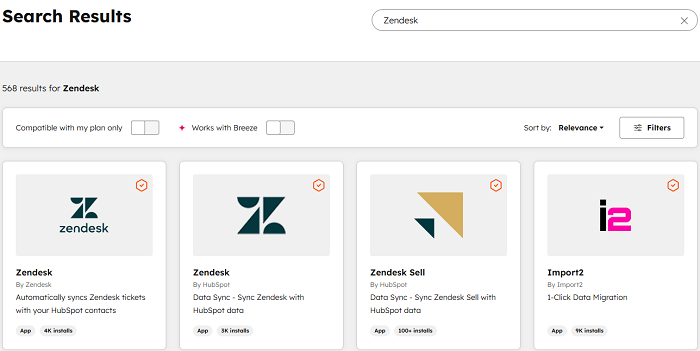
In the search bar, type “Zendesk” and hit enter.
You should see the official Zendesk app pop up, listed as an integration built by HubSpot or certified by them.
Step 2: Install the Zendesk App
Once you have found the app, it is time to connect it to both of your platforms.
-
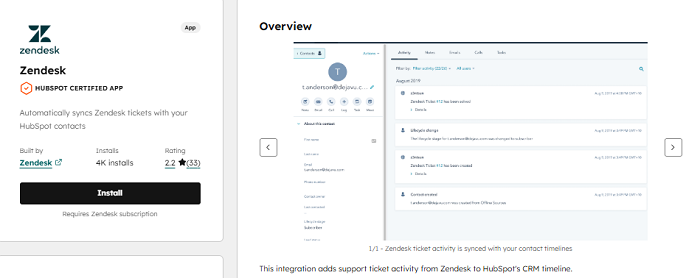
Click the "Install App" or "Connect App" button.
-
You will be asked to authorize access for both HubSpot and Zendesk.
-
You will need to log into your Zendesk account during this step.
-
You may need admin privileges on both accounts to proceed.
-
-
Follow the prompts to grant the necessary permissions.
Once authorized, HubSpot and Zendesk will begin the connection process behind the scenes. It usually only takes a few seconds.
Security Note: This uses OAuth (a secure login protocol). You are not sharing passwords, instead, you are just granting secure access.
Step 3: Configure Sync Settings
Now comes the fun part, which is deciding what data gets synced and how.
Choose what to sync:
-
Contacts: Keep customer records up to date in both systems.
-
Companies: Sync business-level information across platforms.
-
Tickets: Let HubSpot users see Zendesk ticket activity in contact timelines.
Choose sync direction:
-
One-way sync: Updates flow from one system to the other.
-
Two-way sync: Changes made in either system reflect in the other automatically.
Example: If a support ticket is updated in Zendesk, HubSpot will reflect that in the customer’s timeline.
Set up custom field mappings:
You can match fields between the two systems, such as:
| HubSpot Property | Zendesk Field |
| Contact Email | Requester Email |
| Company Name | Organization |
| Ticket Priority | Custom Property |
Step 4: Set Automation Rules
One of the best parts of integrating HubSpot with Zendesk is that you can automate actions across both platforms.
Here are a few common examples:
Example 1: Escalation Alerts
Trigger: Zendesk ticket is marked as “Urgent”
Action: Send an internal HubSpot notification to the Sales Manager
Example 2: Closed Deal Follow-Up
Trigger: A HubSpot deal is moved to “Closed-Won”
Action: Automatically create a “Thank You” ticket in Zendesk for customer onboarding
Example 3: Syncing Notes and Activity
Automatically log Zendesk ticket activity into HubSpot contact records so your sales and marketing teams can see the full context.
Step 5: Test the Integration
Before rolling this out company-wide, it is important to make sure everything is working properly.
Here is how to test it:
-
Create a test contact in HubSpot (use a test email address).
-
In Zendesk, create a ticket using that same email address.
-
Check if:
-
The contact appears in both systems
-
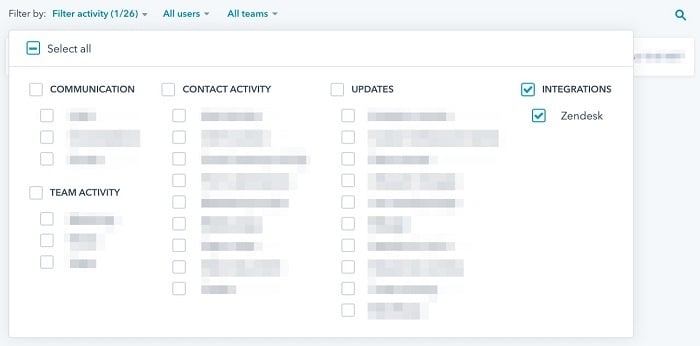
The ticket shows up in the HubSpot contact’s timeline
-
Any workflows or automations trigger as expected
-
Also, try editing the ticket in Zendesk (e.g., change the priority or status) and confirm that the update is reflected in HubSpot.
If something does not sync, check:
-
Field mappings
-
Permissions
-
Sync direction settings
Final Check: Ask a team member from support or sales to try it from their end. Getting real-user feedback helps iron out any kinks.
Best Practices for a Successful Integration
Want your integration to work like a charm? Follow these best practices:
-
Make sure your contact info, ticket fields, and company names are consistent.
-
Review your mapping settings, especially after platform updates or changes in your process.
-
Your sales, marketing, and support teams should know how the integration works and where to find info.
-
Set up alerts or reports to catch syncing issues early.
Common Issues and How to Troubleshoot Them
Even the best integrations run into snags, but there is no need to worry. Here is how to fix the most common ones:
| Issue | Cause | Fix |
| Duplicate Data | Syncing both ways without matching criteria | Use email or a unique ID to match records across platforms |
| Sync Delays or Failures | API limits or temporary outages | Wait and retry, or check the platform status pages |
| Permission Issues | User lacks access to certain fields or data | Double-check user roles and permissions on both HubSpot and Zendesk |
| Error Messages | Misconfigured mappings or expired tokens | Reconnect the integration and review sync logs for specific errors |
Final Thoughts
Integrating HubSpot and Zendesk is a way to make your entire business more connected, more informed, and more customer-friendly.
-
You get a unified view of your customers
-
Your teams work smarter and faster
-
You deliver a better customer experience
-
And you save hours of manual work